> ## Documentation Index
> Fetch the complete documentation index at: https://botpress-update-integrations.mintlify.site/llms.txt
> Use this file to discover all available pages before exploring further.
# Assigning a value
export const GoodToKnow = ({children}) => {
return
{children}
;
};
A newly-created variable is like an empty box—you need put something inside it before you can use it. This is called *assigning a value* to your variable.
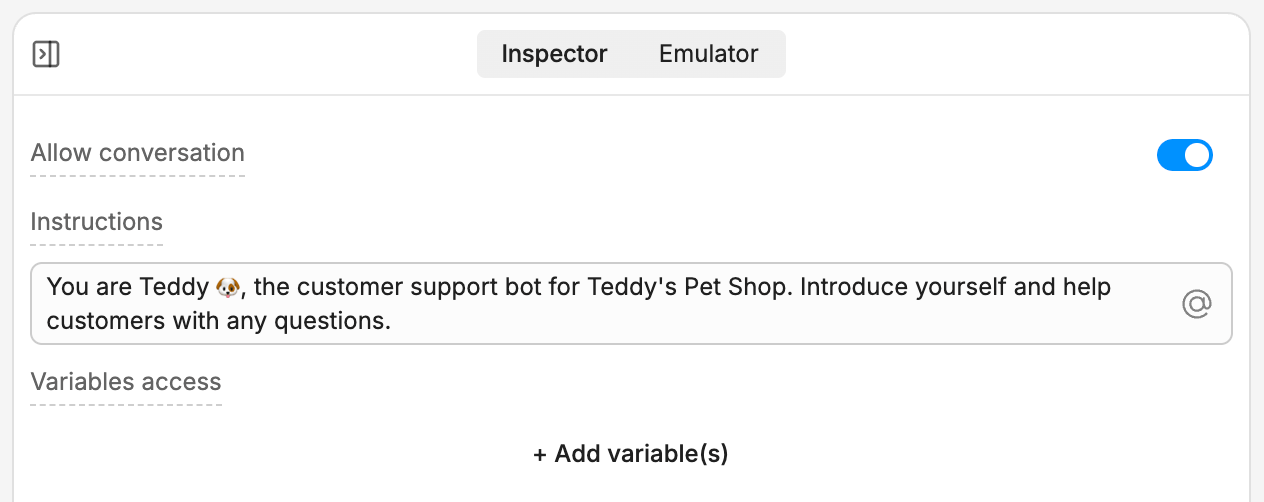
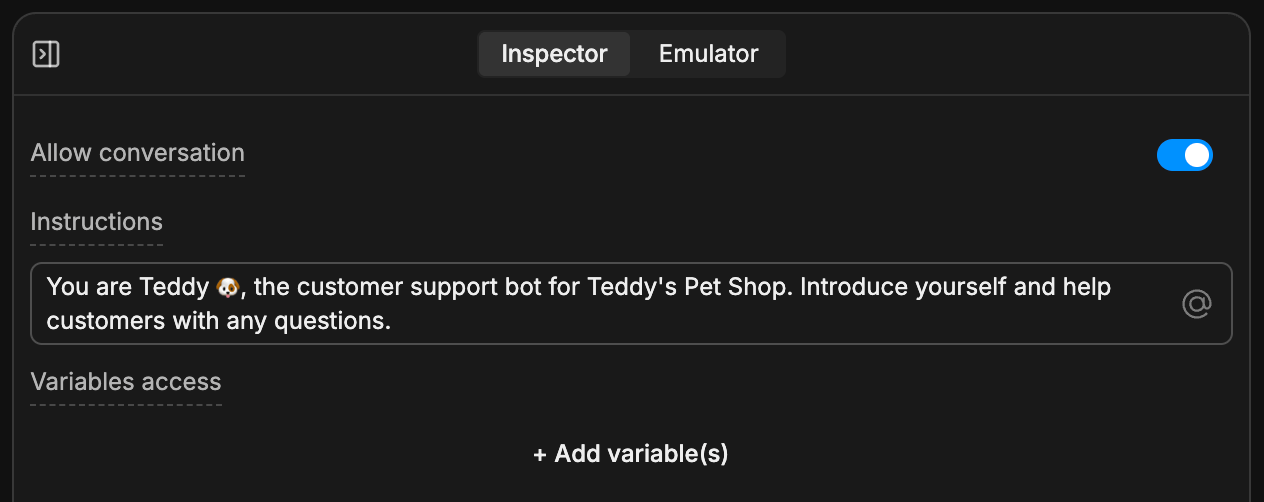
Let's use our `firstName` variable to remember the user's first name. Go back to the Main Workflow and select your Autonomous Node. This opens its inspector:
 ## Giving access to variables
By default, the Autonomous Node can't check what's in a variable or assign it a different value.
Let's give it access. Select **+ Add variable(s)**, then select `workflow.firstName`. Then, check **Allow write access**, so your bot has permission to modify the variable.
## Giving access to variables
By default, the Autonomous Node can't check what's in a variable or assign it a different value.
Let's give it access. Select **+ Add variable(s)**, then select `workflow.firstName`. Then, check **Allow write access**, so your bot has permission to modify the variable.

 ## Modifying your prompt
Next, modify the prompt so your bot knows how to work with the variable. Erase everything in the **Instructions** field, then paste the following:
```txt wrap theme={"theme":{"light":"light-plus","dark":"dark-plus"}}
You are Teddy 🐶, the customer support bot for Teddy's Pet Shop.
If the `firstName` variable has a value, use it to address the user by name. If not, prompt the user to enter their name, then assign it to `firstName`.
```
Now, switch back to the Emulator and start a conversation with your bot:
## Modifying your prompt
Next, modify the prompt so your bot knows how to work with the variable. Erase everything in the **Instructions** field, then paste the following:
```txt wrap theme={"theme":{"light":"light-plus","dark":"dark-plus"}}
You are Teddy 🐶, the customer support bot for Teddy's Pet Shop.
If the `firstName` variable has a value, use it to address the user by name. If not, prompt the user to enter their name, then assign it to `firstName`.
```
Now, switch back to the Emulator and start a conversation with your bot:
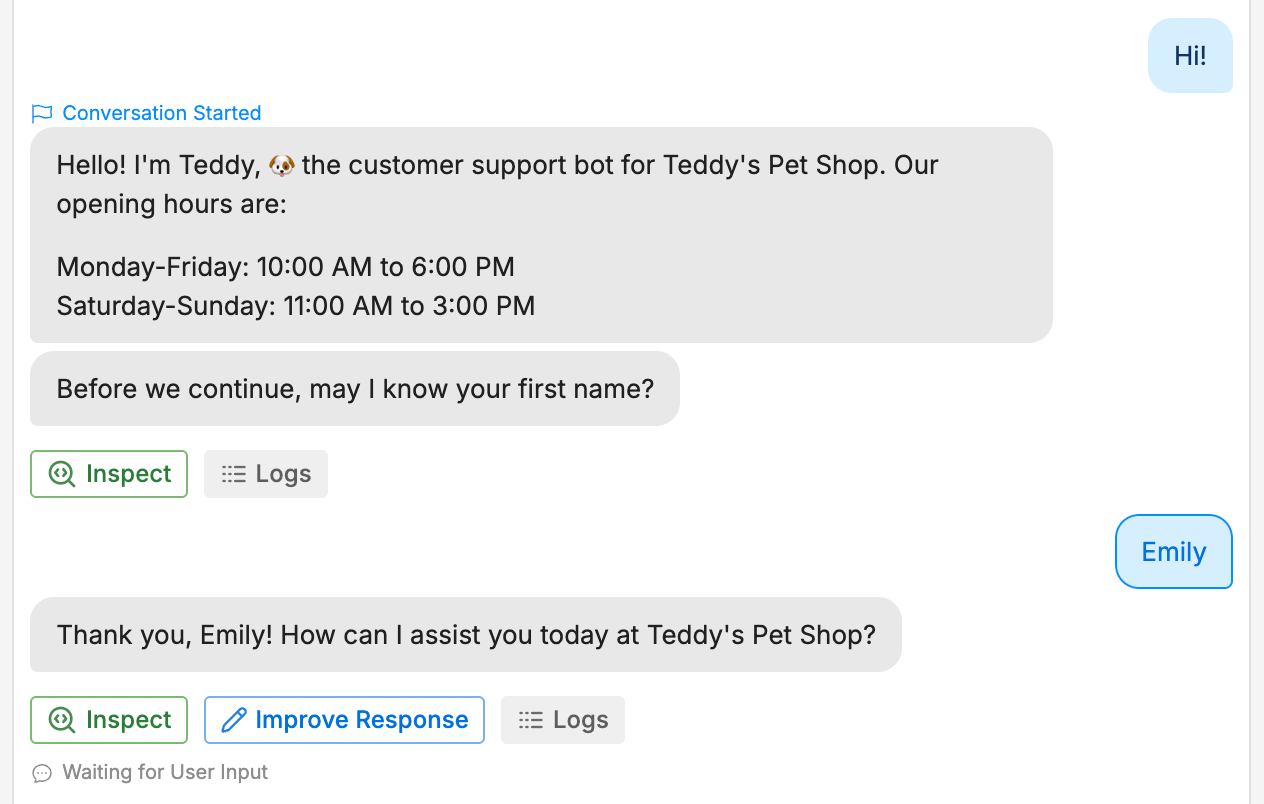
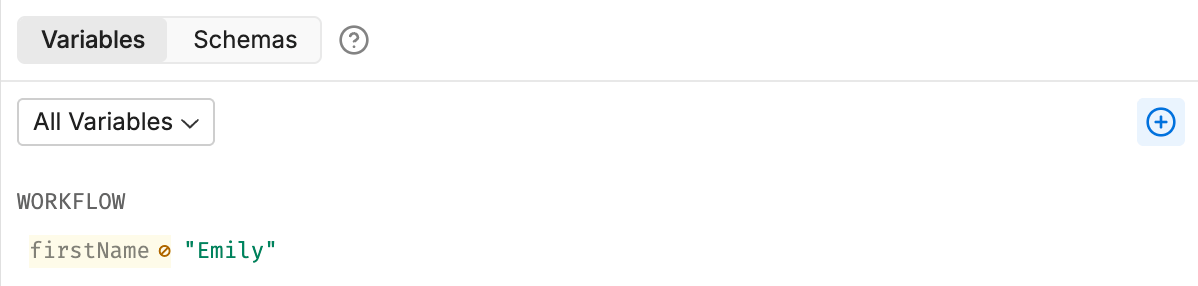
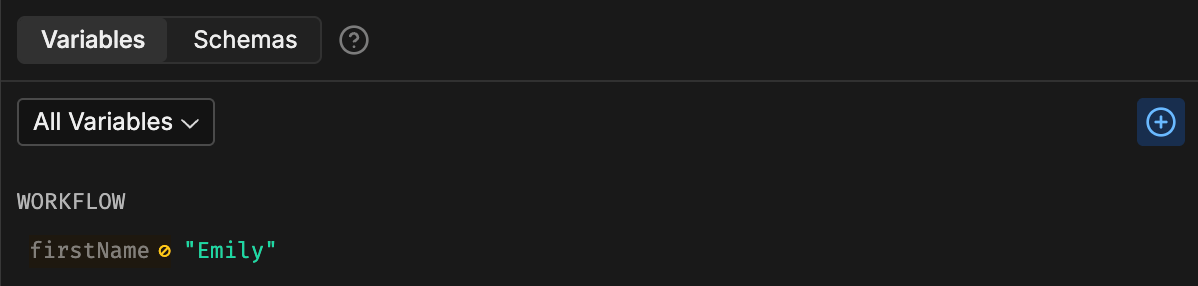
 Nice! Our modified prompt worked. If you look back at the Variables section, you can see that the value updated: